Introduction
Google Forms is one of the easiest and most effective tools for teachers to create quizzes, polls, and feedback forms. It’s free, simple to use, and perfect for both in-class and remote learning. In this article, we’ll show you how to create quick quizzes with automatic grading.
Step-by-Step: Creating a Google Forms Quiz
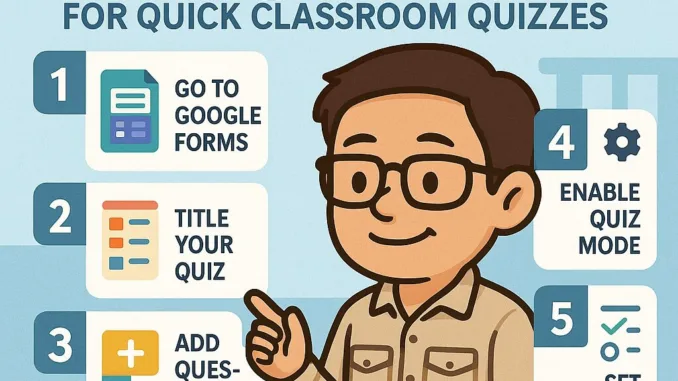
1. Go to Google Forms
Visit forms.google.com and click the blank quiz template.
2. Title Your Quiz
Give your quiz a clear title, such as “Math Quiz – Week 2” or “Vocabulary Check.”
3. Add Questions
Click the plus (+) button to add new questions. Choose multiple choice, short answer, or checkboxes based on your quiz type.
4. Enable Quiz Mode
Go to Settings > Quizzes > Make this a quiz
Turn on “Release grade immediately” if you want automatic scoring.
5. Set Correct Answers
After adding each question, click “Answer key” to mark the correct answer and assign points.
6. Send to Students
Click “Send” and choose the link icon to copy and share the quiz via LINE, email, or your class page.
Why Use Google Forms for Quizzes?
- Instant Feedback
Students can see their scores immediately after submission. - Easy Grading
The form automatically checks answers and calculates scores. - Paperless & Fast
No printing or manual checking required. - Track Student Performance
View a summary of responses and export scores to Google Sheets.
Teacher Tip:
Use the “Shuffle question order” and “Limit to 1 response” options to make online quizzes more secure and fair.
Final Thoughts
Google Forms is an essential tool for modern classrooms. Whether you’re in Thailand or anywhere else in the world, it’s a free and powerful way to engage students and reduce your grading workload. Try it today and see the difference!
